Copy and paste feels temporary until you replace the one thing you still needed. Clipboard history solves that problem by keeping recent items available after the system clipboard changes.
The privacy question is not whether clipboard history is useful. It is whether you understand where the history goes, how long it remains, and what the app can still reveal on screen.
Start with the actual clipboard boundary
A clipboard manager should only consider content that reaches the macOS clipboard through a copy action or an explicit save action. That can include:
- Plain and rich text.
- Links and code snippets.
- Images and screenshots.
- Local file references.
It should not need your browsing history, continuous screen capture, password-manager database, or ordinary live typing to provide clipboard history.
WhatTheClip follows that local clipboard boundary. Capture can also be paused when you do not want new items entering history.
Local-first does not mean invisible
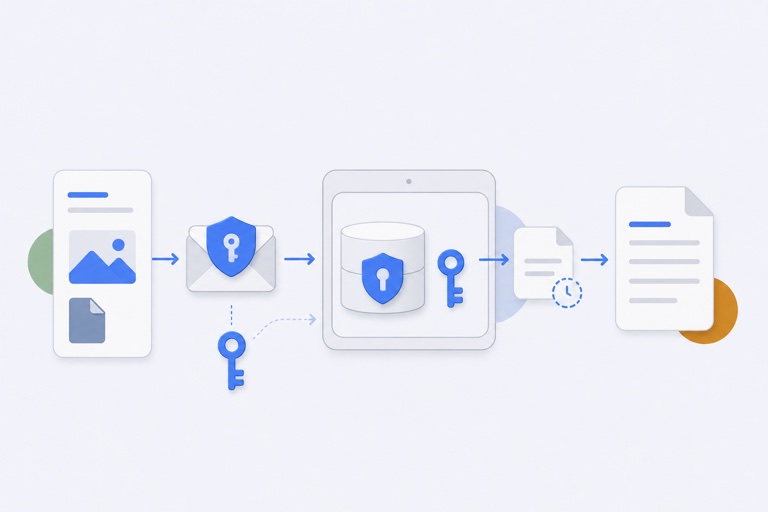
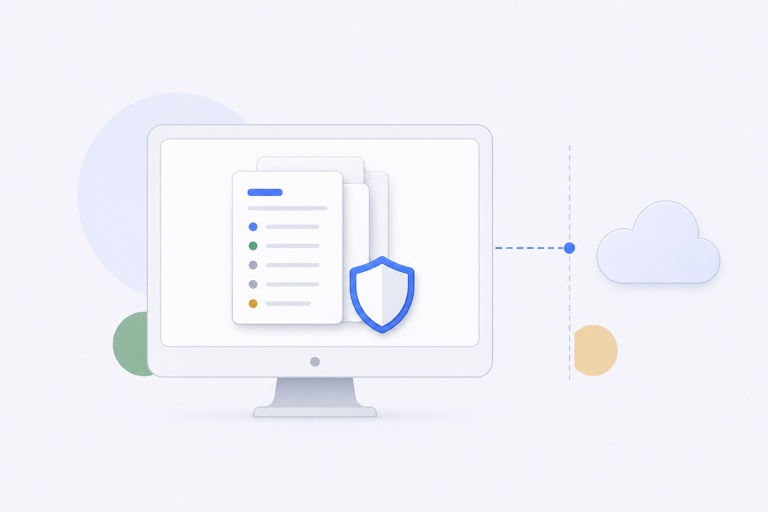
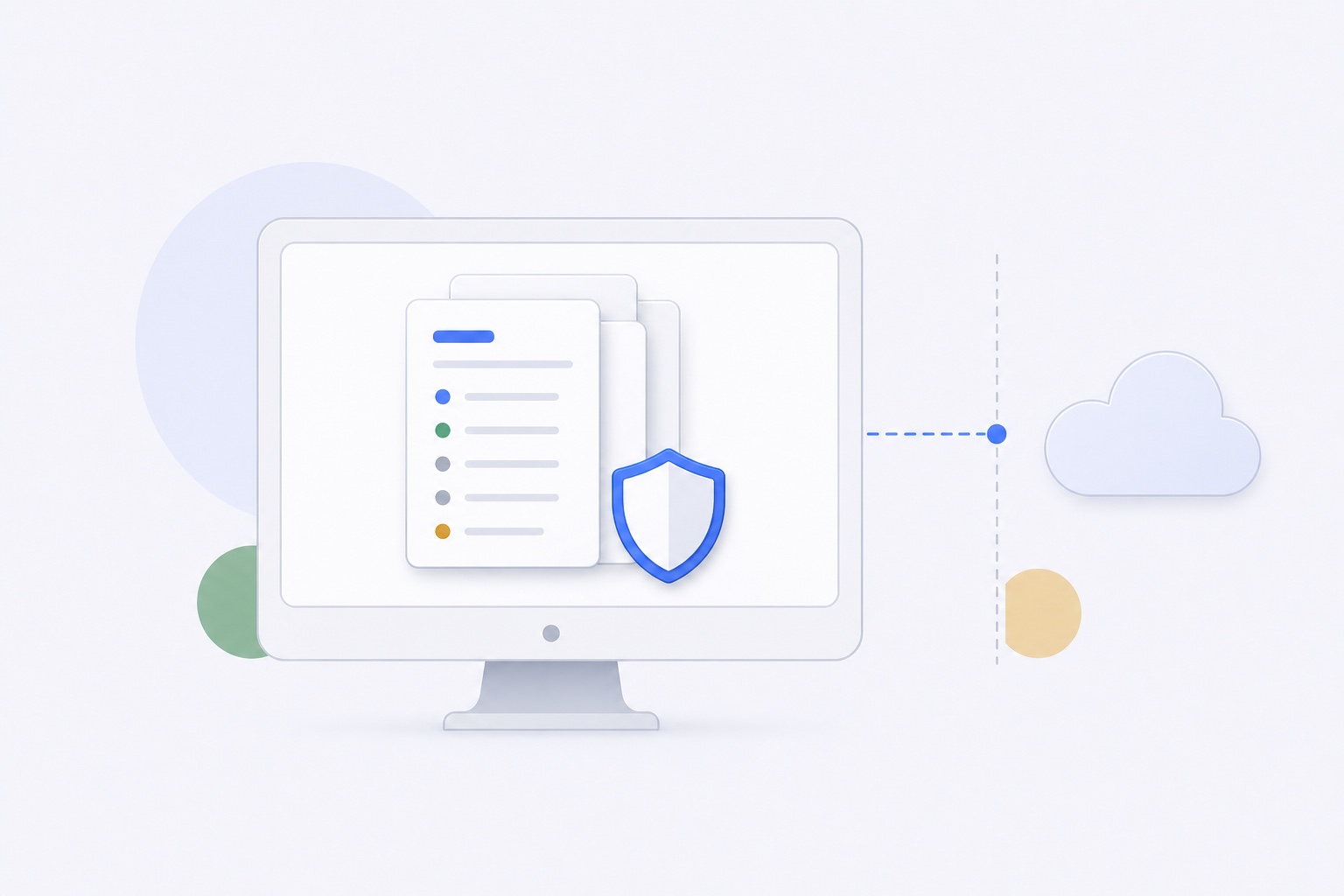
WhatTheClip has no CloudKit sync, remote clipboard processing, product analytics, or remote application logging. Managed payload files are written locally and encrypted at rest.
The interface still needs enough information to help you recognize an item. Titles, previews, item types, and timestamps can therefore reveal part of what you copied. A local-first product should state that openly.
Think of payload encryption and visible metadata as two different layers:
- The payload file contains the reusable text, image, or file data.
- The local metadata helps the app label, sort, and preview that payload.
Protecting the first layer does not make the second layer disappear from the screen.
That matters in ordinary situations, not only in a security review. A clipped address may be encrypted in storage while its title is still visible in a list. A screenshot can be protected at rest and still be recognisable in a thumbnail when the Mac is unlocked. The honest choice is to keep useful previews small, limit retention, and clear the local queue after sensitive work.
Keep the history intentionally small
An unlimited clipboard archive creates more privacy and cleanup work than most people need. WhatTheClip keeps history configurable and bounded.
A smaller limit works well when you mainly need to recover the last few things you copied. A larger limit helps when you move between several apps and projects during the day.
Whichever limit you choose, clipboard history should remain a working queue rather than a permanent records system.
Choose the boundary before you need it
Take a minute to decide what should never enter history. Password managers often clear copied secrets automatically, but do not assume every app behaves the same way. If you are handling a recovery code, a private contract, or a temporary credential, pause capture first or clear history once the task is complete.
For routine work, a smaller history is often easier to trust because you can see what it contains. For a busy research or support session, a larger bounded range may be more useful. Neither setting is “more private” on its own; the right choice is the one you understand and can clean up deliberately.
Separate recent history from reusable favorites
Recent history answers, “What did I copy a moment ago?”
Favorite slots answer, “What do I paste repeatedly in this app?”
Keeping those jobs separate reduces the temptation to preserve hundreds of old clipboard items. A support reply, code snippet, logo file, or invoice note that you use every week belongs in a named favorite slot. Temporary copied content can remain in bounded history and be pruned normally.
Use a simple privacy routine
A practical local clipboard routine looks like this:
- Pause capture before copying something you do not want in history.
- Keep the history limit only as large as your workflow needs.
- Move genuinely reusable content into an intentional favorite slot.
- Delete sensitive history items after use.
- Use Clear Local Data when you want to remove history, profiles, favorite slots, managed payload files, and custom profile logos.
The Privacy Policy describes the current storage and deletion boundaries in more detail.
The useful standard
Private clipboard software does not need to promise that nothing is ever visible. It needs to provide honest boundaries, local controls, and storage behavior that matches the promise.
Your clipboard history should help you recover work without quietly becoming a remote profile of everything you copy.