
Get comfortable with your clipboard workflow.
WhatTheClip keeps recent copies, reusable App Profile favourites, and keyboard controls together on your Mac. This short guide shows where each part of the workflow lives.
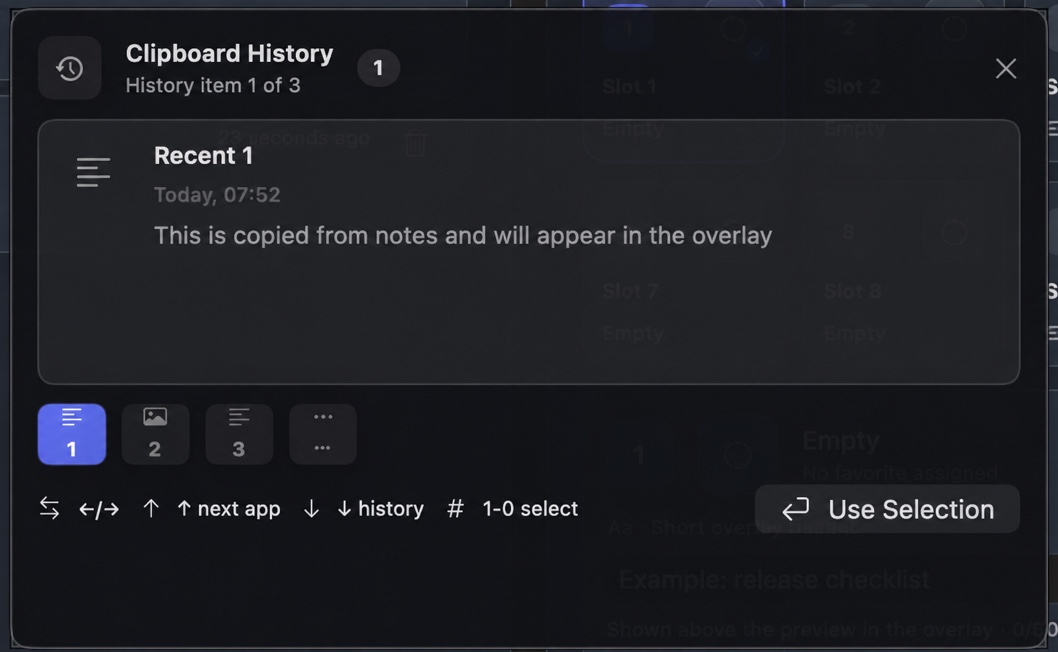
Find a recent copy
Copy a harmless phrase, then open the overlay to see recent clipboard history. Select the item you need and continue in the app where you were working.
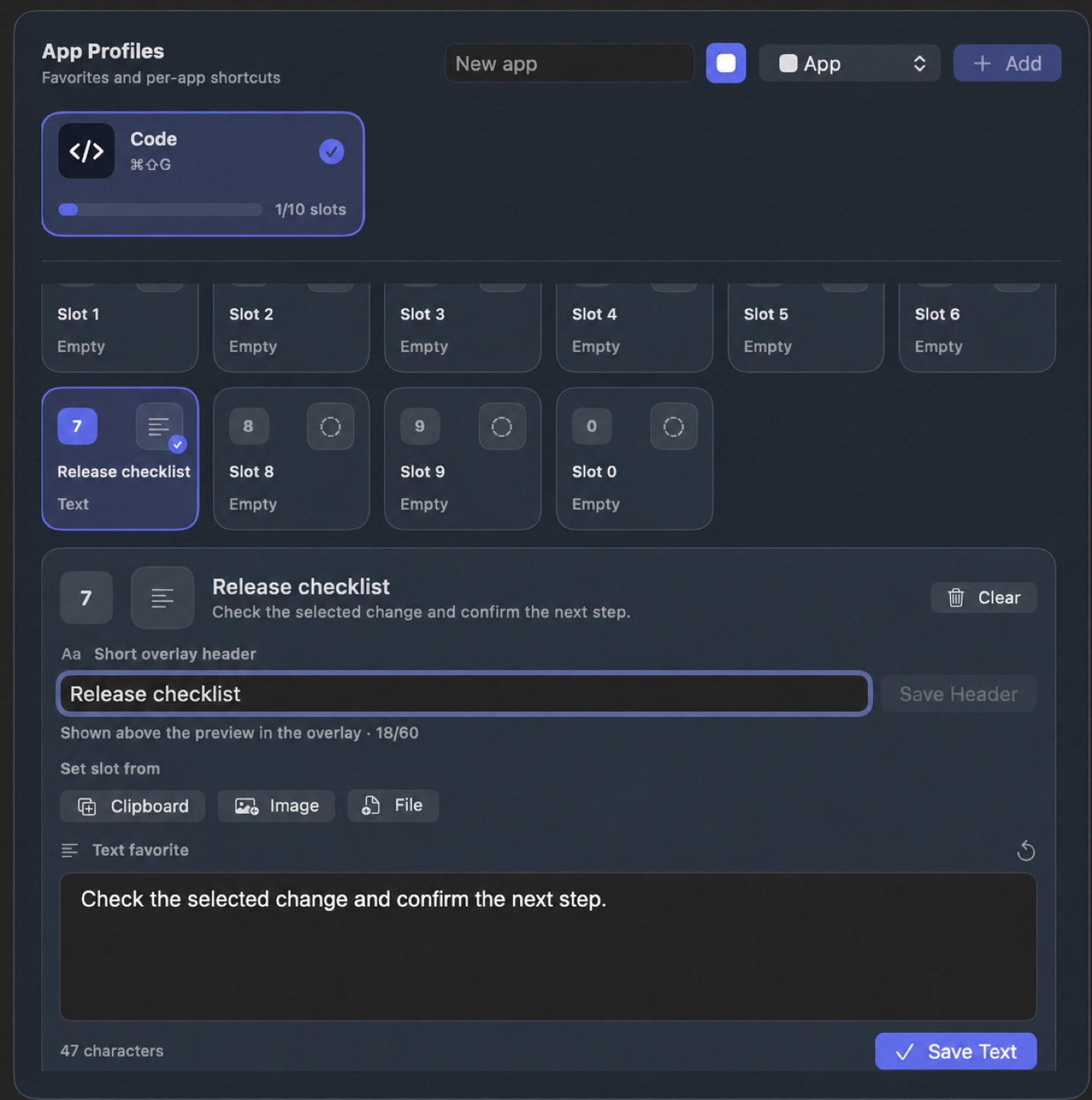
Create an App Profile for repeated work
Give repeated replies, code snippets, links, or files a home in the app context where you use them. Each profile has numbered favourite slots for deliberate reuse.
Choose shortcuts you will remember
The Shortcuts tab shows the clipboard-history overlay shortcut and the prefix used for new App Profiles. Keep them memorable and avoid combinations already used by another Mac app.
Understand shortcut permissions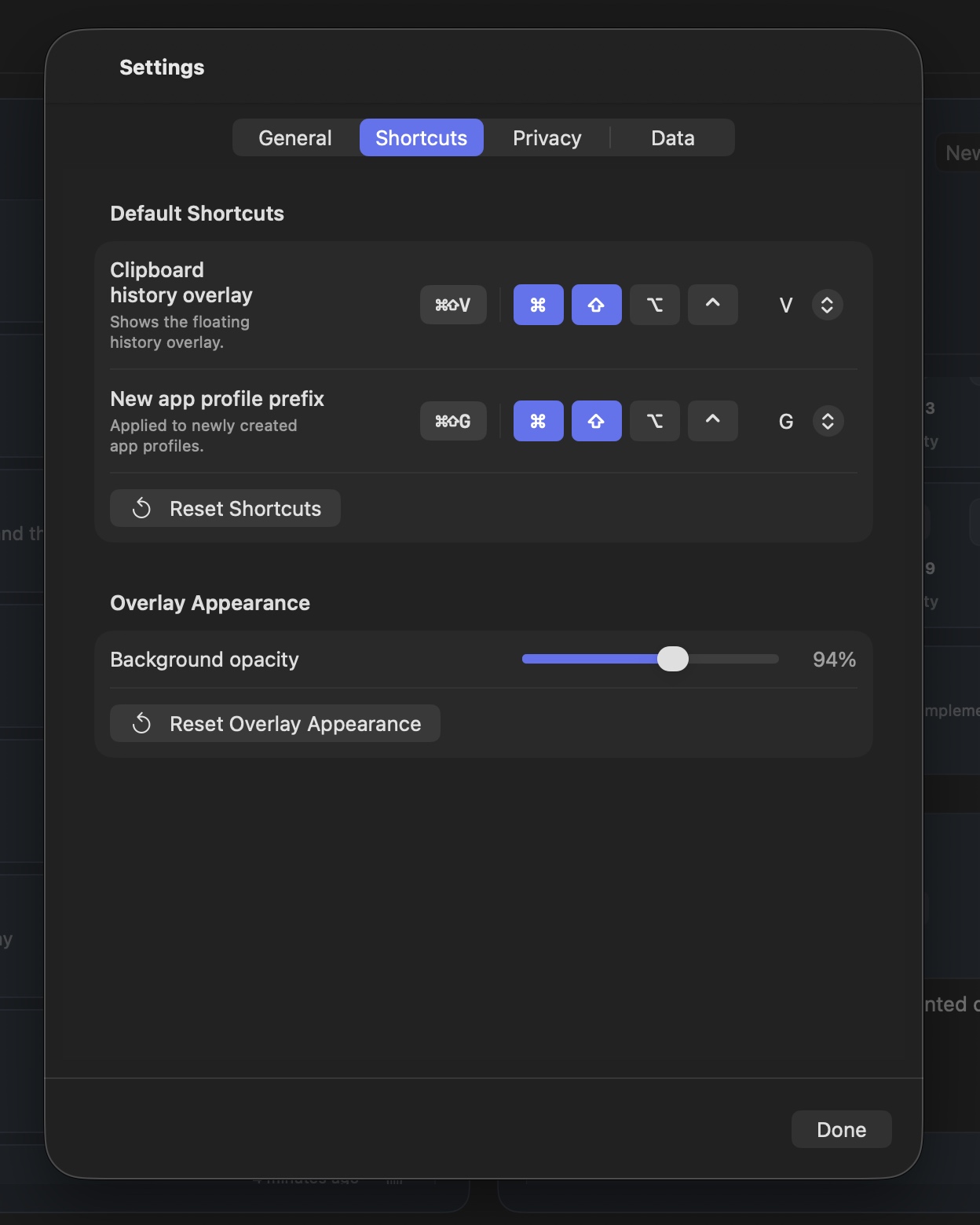
Review permissions before relying on automatic paste
Accessibility supports a user-triggered paste back into your previous app. Input Monitoring supports global shortcuts and overlay navigation. Approve only the capabilities that match the workflow you want.
Read the full permissions guide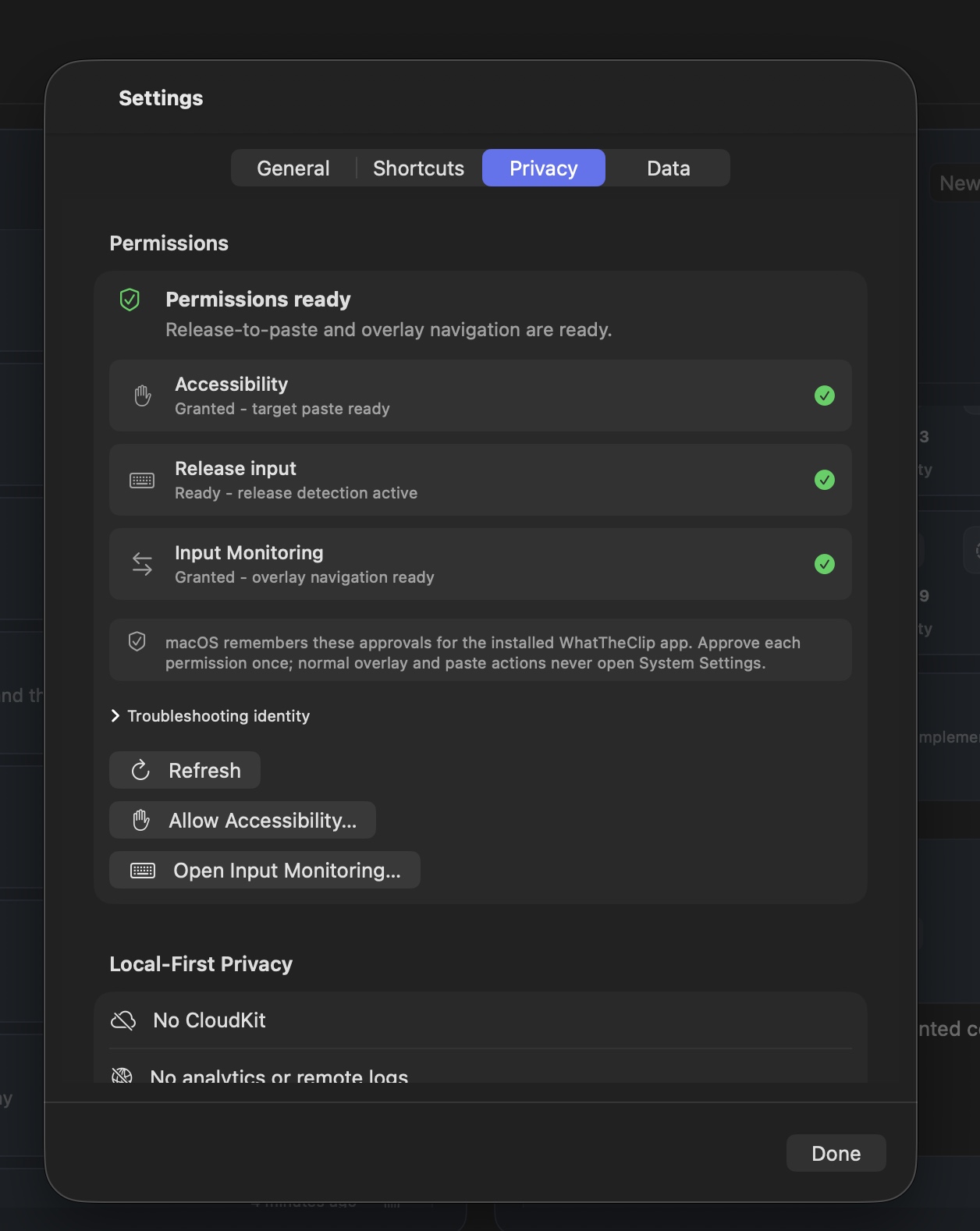
Choose a saved favourite without leaving the task
Use the profile selector and numbered slots to choose intentional repeat material. The overlay shows what will be used before it returns you to the app where you were working.
Learn how to build App Profiles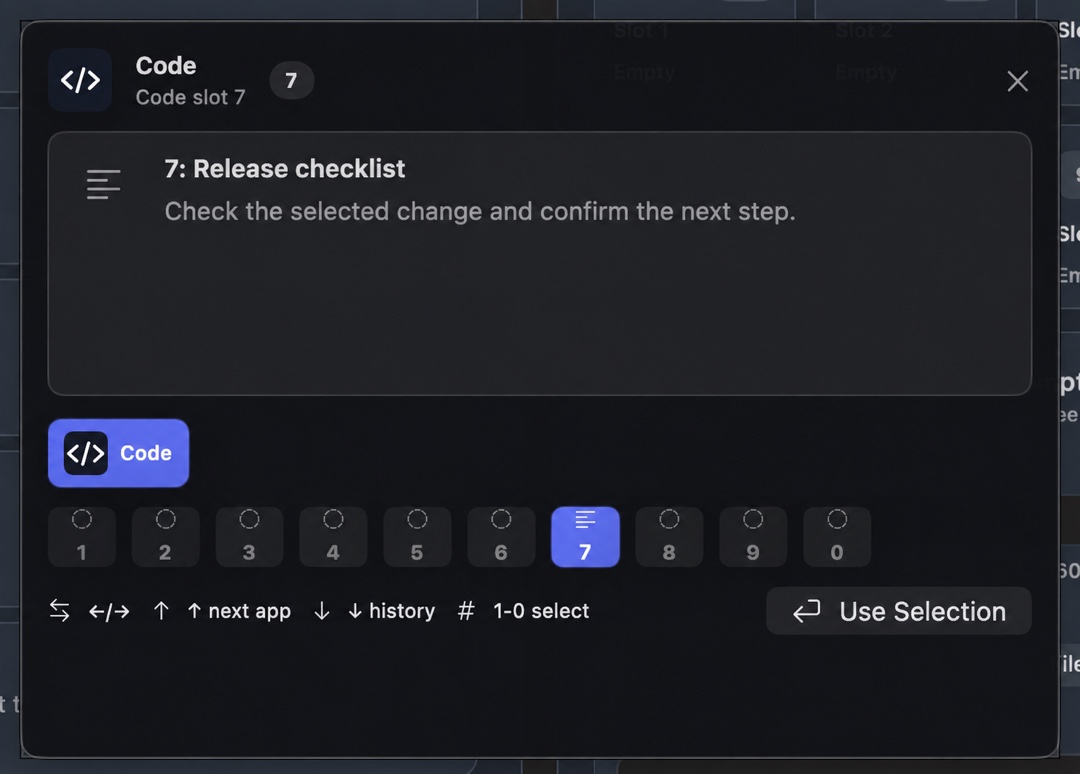
Ready for the full setup?
Use the detailed guide when you want the complete sequence, including the safest first test.