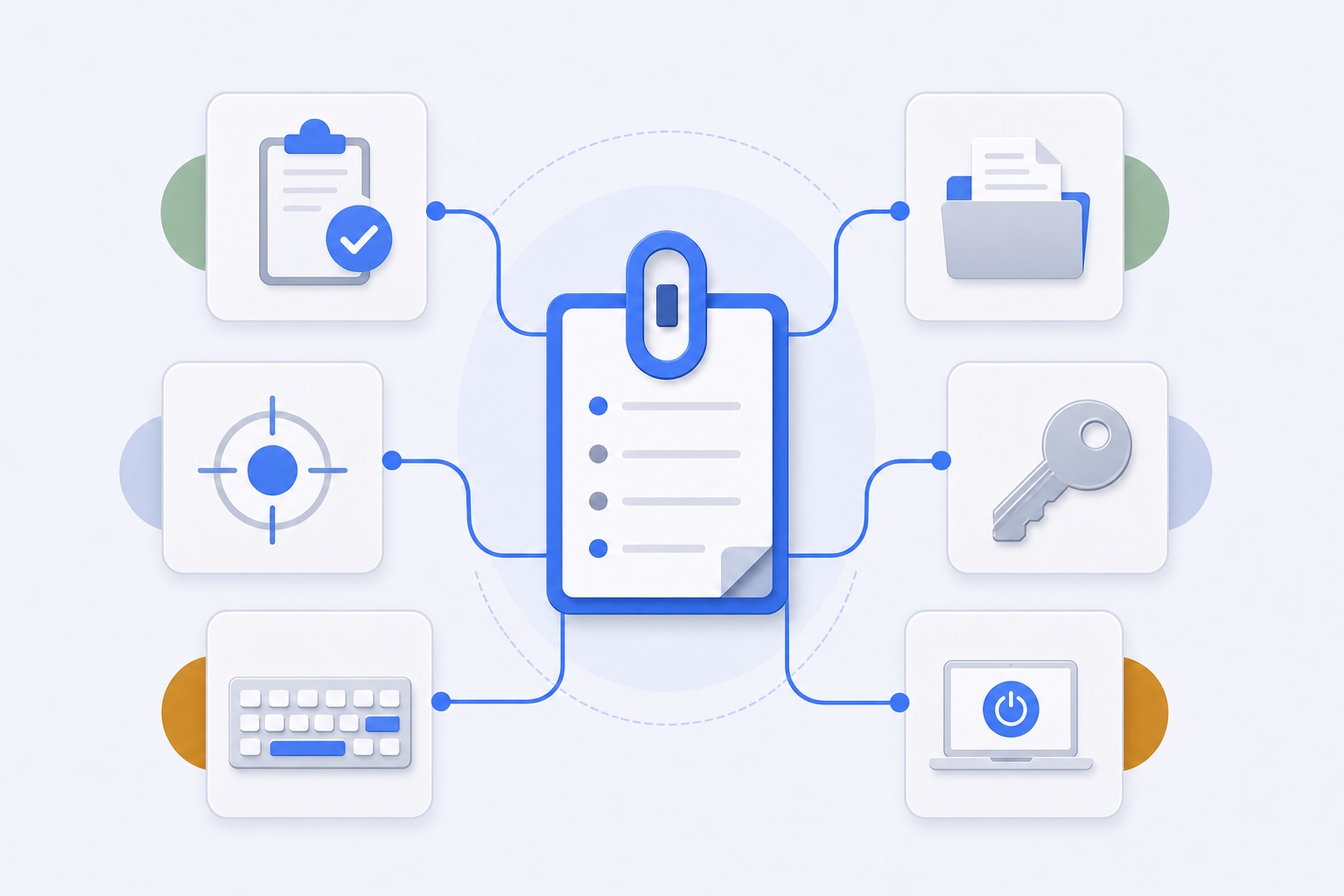
macOS permission names describe system capabilities, not a product's exact intention. That is why “Accessibility” or “Input Monitoring” can sound much broader than the feature you are trying to enable.
The useful question is: what specific action stops working when this permission is off?
Clipboard access keeps recent copies available
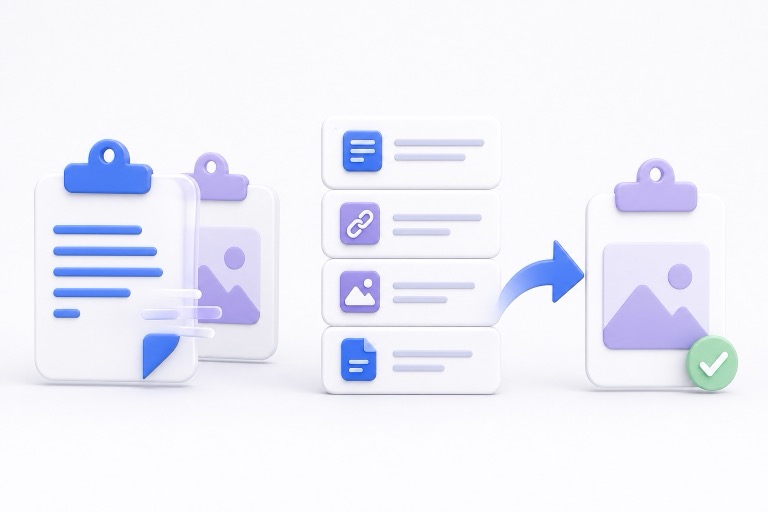
Clipboard history needs to read content that already reached the system clipboard. That is how copied text, links, images, and file references become history items.
This is different from reading ordinary typing. A clipboard utility should not need to save every key you press in order to observe the result of an explicit copy action.
In WhatTheClip, you can pause capture whenever you do not want new clipboard changes added to local history.
Accessibility supports automatic paste
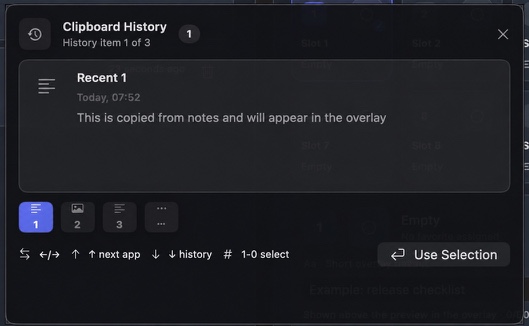
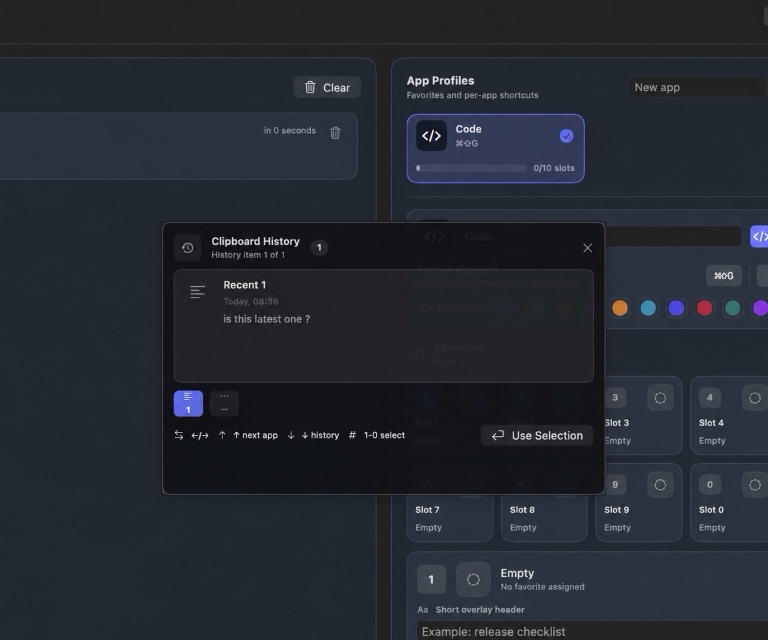
When you choose an item from an overlay, the clipboard utility has to return control to the app you were using and issue a paste command.
macOS protects that cross-app automation through Accessibility approval. Without approval, WhatTheClip can still copy the selected payload to the clipboard, but the final Command-V step may need to be manual.
This makes Accessibility a paste feature, not a requirement for reading all content in other apps.
Input Monitoring supports shortcuts and overlay keys
A global shortcut must work while another app is active. The same applies to number keys or navigation used inside an overlay that appears above the current workflow.
Depending on the input path and macOS version, Input Monitoring may be required for that global handling. It should not be treated as permission to build a record of normal typing.
If you disable global hotkeys, the app should stop relying on that shortcut path.
File access applies to files you choose
Clipboard managers increasingly handle screenshots and local files, not only text. File access is relevant when:
- macOS places a local file reference on the clipboard.
- You explicitly select an image or file for a favorite slot.
- A stored file needs to be materialized temporarily for paste.
That does not justify scanning unrelated folders. The scope should follow the file you copied or selected.
Keychain protects the encryption key
WhatTheClip encrypts managed payload files with AES-GCM. The root key is stored in macOS Keychain so it is not hard-coded into the app or written beside the encrypted files.
This does not allow WhatTheClip to read unrelated passwords or credentials. Keychain items are addressed individually, and the app uses its own stored key.
Launch at login is optional convenience
A menu-bar clipboard utility is most useful when it is ready before you need it. The login item starts the helper after sign-in.
It does not automatically grant clipboard, Accessibility, or Input Monitoring access. Those capabilities remain separate.
Approve WhatTheClip from Applications
macOS privacy approvals are associated with an application identity and path. Moving or replacing an app, or resetting privacy settings, can make macOS ask for approval again.
The clean setup order is:
- Put WhatTheClip in Applications.
- Open WhatTheClip Settings.
- Enable the feature you want.
- Follow the setup action to the correct macOS pane.
- Approve WhatTheClip.
- Run one harmless copy-and-paste test.
The full Permissions Guide includes troubleshooting steps for repeated prompts and paste fallback behavior.
A sensible permission check before you approve
Read the label in macOS Settings, then connect it to the action you want. Want a global shortcut while another app is open? That is an input-handling question. Want the selected item to return to the field you were using? That is a user-triggered paste question. Want history only? You may not need the same set of permissions at all.
If an app cannot explain that connection in normal language, pause before approving it. Broad system permissions deserve a narrow product reason. It is also worth testing changes with a harmless phrase in TextEdit first, where a complicated browser editor or remote-desktop session cannot muddy the result.
You can revoke an approval later in macOS Privacy & Security. After changing it, reopen the app if macOS asks and repeat the same small test. That gives you a clear answer about what the permission actually changed.