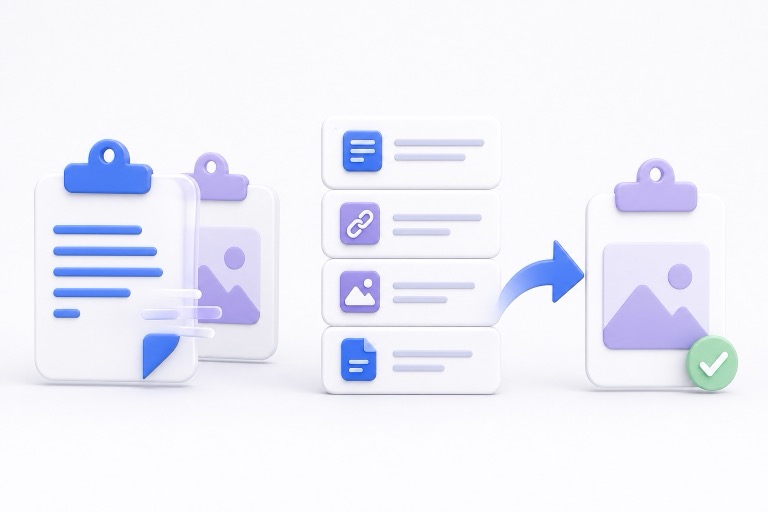
A Mac clipboard utility is a small working tool that helps with the material you have copied recently: a link, a reply, a command, a file reference, or an image. It gives that material a short, useful life beyond the single item normally held by the clipboard.
The best use is not to collect everything forever. It is to recover a recent copy, keep a few repeated items ready, and return to the work you were doing.
What is the Mac clipboard?
The standard macOS clipboard holds the item you copied most recently. Copy something else and the previous item is generally replaced. That works perfectly when you only need one thing at a time, but it breaks down when you move between a browser, email, notes, design tools, and a terminal.
Modern macOS versions also include clipboard-history features for some workflows. A dedicated utility can be useful when you need a focused keyboard overlay, app-specific favourites, or support for the macOS versions and workflows your team uses. See how clipboard history works on Mac for the built-in option and its boundaries.
What a clipboard utility adds
A useful clipboard utility usually adds three clear jobs.
1. Recover recent copies
Clipboard history lets you retrieve an item after you have copied something else. That is useful for the sentence you replaced while writing, a URL from a browser tab, or a command you were about to reuse.
Recent history should stay intentionally limited. It is for active work, not a substitute for a document folder, source control, or an asset library.
2. Reuse deliberate favourites
Some material is worth keeping within reach: a current support reply, a project link, a code-review note, or a standard handoff message. Favourites make that reuse intentional instead of leaving it buried in a long list of old copies.
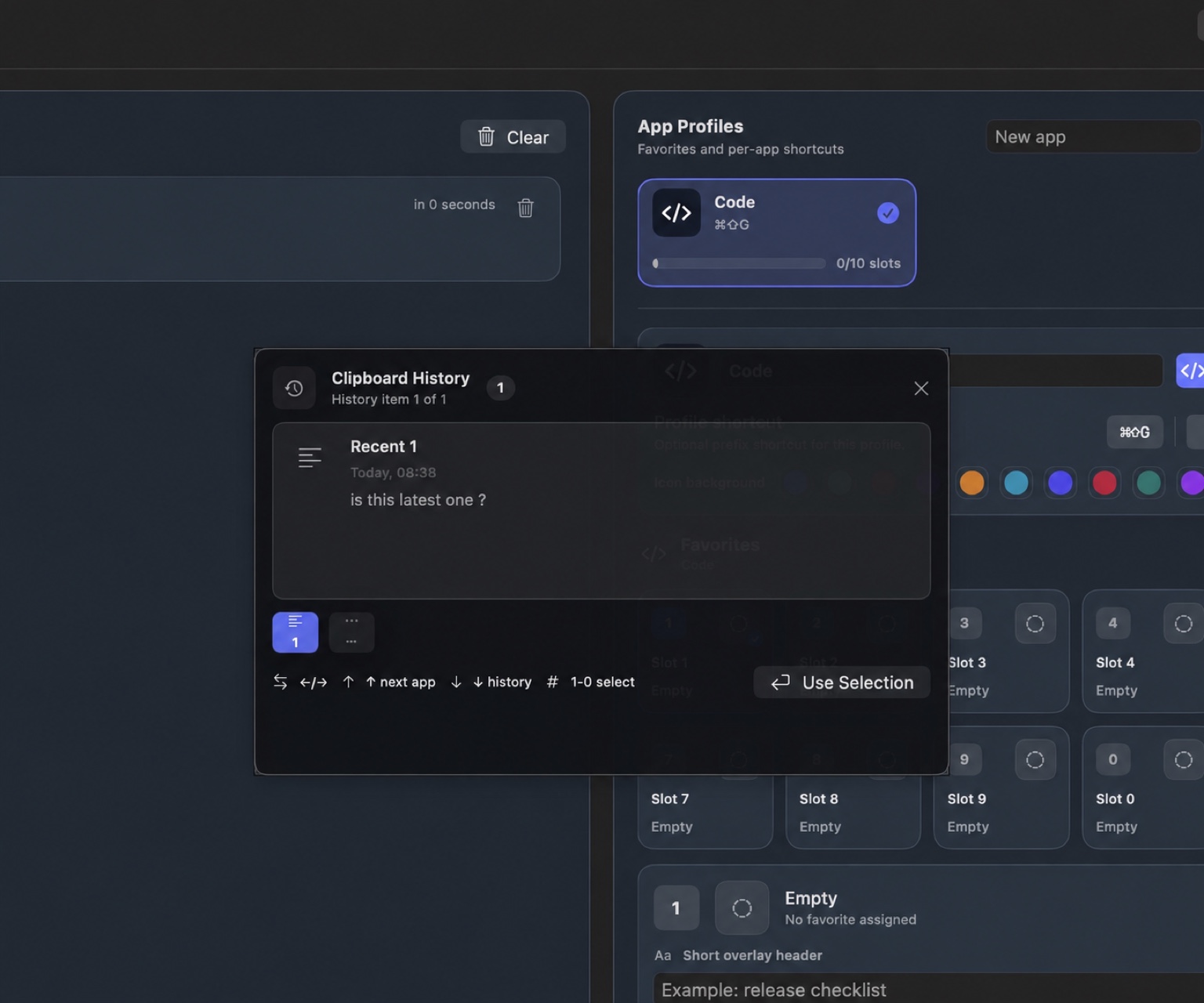
With WhatTheClip, App Profiles let you keep those favourites close to the app or task where they make sense. Create app-specific clipboard workflows shows practical examples for mail, coding, design, and support work.
3. Return to the task faster
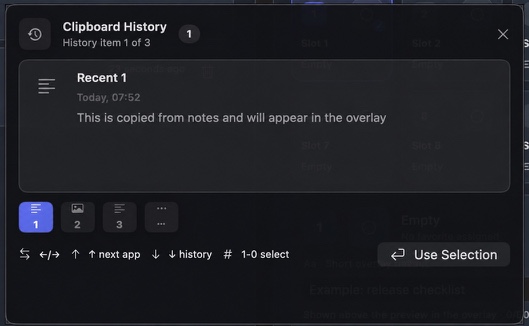
The useful part is the route back to where you were working. A keyboard overlay can show recent items and favourites, let you choose one, and help you paste it into the active app without hunting through another window.
The visual WhatTheClip guide shows this flow step by step, including the overlay and its shortcut settings.
Clipboard utility, clipboard manager, or backup?
People use “clipboard utility” and “clipboard manager” to mean much the same thing: software that extends the basic clipboard. The important distinction is between short-term working material and permanent records.
| Example | Keep it in a clipboard utility | Keep it somewhere else |
|---|---|---|
| Link | A link you copied a few minutes ago | The source document or important reference |
| Reply | A repeated, approved reply | Credentials, passwords, and recovery codes |
| Project material | A current project snippet or file reference | Code that belongs in version control |
| Image | A temporary image for active work | Original images and design files |
If something is valuable or irreplaceable, save it in the system built to preserve it. Clipboard history is not a backup explains why that boundary matters.
When a Mac clipboard utility is worth using
It tends to help most when you regularly copy between several apps, paste versions of the same material, or lose something because a newer copy replaced it.
Start with one small workflow rather than importing your whole working life:
- Keep recent history for quick recovery.
- Save only genuinely repeated material as favourites.
- Give favourites clear names and remove them when they are outdated.
- Keep originals in their proper long-term home.
WhatTheClip is designed around that small, local-first loop: recent clipboard history, app-specific favourites, and a keyboard overlay for getting back to the task. Explore the feature set, review the privacy approach, or read the permissions guide before installing.
The test is whether it removes a detour
Try a clipboard utility with a task you already do: prepare a short client reply, move two links from a browser into a project note, or copy a command while checking its documentation. If the tool means less window hunting and fewer repeated searches, it is doing useful work. If it asks you to classify every copy or remember a new ritual, simplify the setup.
The best first configuration is usually boring: a short history, one profile, and three to five carefully named favourites. You can always add more later. Starting small also makes it easier to notice what the tool is storing and to keep sensitive or permanent material out of the clipboard workflow.