You copy a paragraph, switch apps, and copy a link. A moment later, you realise you still needed the paragraph. Can you recover something you copied earlier on Mac?
Sometimes—but only if macOS, the original app, or a clipboard manager had already kept another copy. The current clipboard cannot recreate content after it has been replaced.
The steps below help you recover copied items on Mac by checking each place that may already hold the missing content.
First, understand what was replaced
The standard Mac clipboard holds the item currently ready to paste. When you copy something new, that new item becomes the current clipboard content.
The previous item may still exist somewhere else:
- In macOS Clipboard history on a supported Mac.
- In the document, message, browser tab, or app it came from.
- In an app's Undo, version history, or recently deleted area.
- In a clipboard manager that was already running when you copied it.
That distinction matters. An item can disappear from the current clipboard without being gone from every possible source.
If you use macOS Tahoe, check Clipboard history
macOS Tahoe 26 includes Clipboard history in Spotlight. If the feature was enabled and the item is still within its recent history, it may be available even after you copy something else.
Press Command-Space, then Command-4, and search for a recognisable word from the missing item. Our detailed guide explains how to open, search, paste, and clear clipboard history in macOS Tahoe.
If the item does not appear, Clipboard history cannot rebuild it from memory. Move on to the original app and its recovery tools.
What if your Mac uses Sonoma or Sequoia?
macOS Sonoma 14 and Sequoia 15 do not include Tahoe's built-in Clipboard history view. Normal copy and paste still gives you the current clipboard item, but there is no system list of earlier copies to search.
If the Mac clipboard was overwritten on one of those versions, your best chance is the app or document where the content originally appeared. A clipboard manager can prevent the same problem next time, but installing one after the loss cannot recover content it never captured.
Check these four recovery paths
1. Return to the original app
Go back to the document, email, browser page, note, code editor, or chat where you copied the content. Search the page or reopen the item from the app's recent documents.
If you copied text from something you were editing and then deleted or replaced it, Command-Z may restore the edit. Undo changes the document; it does not roll the system clipboard backwards.
2. Look for version history or autosave
Document editors, note apps, design tools, and cloud-based workspaces may retain earlier versions. Check the app's File, History, or Recently Deleted options before assuming the content is gone.
This is especially useful when the missing copy came from your own work. The authoritative document is a safer recovery source than clipboard history.
3. Check history that was already enabled
Open macOS Clipboard history on Tahoe or the clipboard manager you were using at the time. Search by a distinctive word, filename, link domain, or item type.
Do not install several clipboard tools and expect them to scan the past. They begin building history only after they are installed, running, and allowed to observe new clipboard changes.
4. Check the source, not just the clipboard
A copied link may still be in browser history. A file may still be in Finder. A screenshot may be in its save location. A sent reply may be in Mail or your support system.
When you need to find previously copied text on Mac, think about where the text came from as well as where you planned to paste it.
What will not recover an overwritten clipboard item
Some common attempts only reveal the current clipboard:
- Pasting again after a newer copy simply pastes the newer item.
- Restarting the Mac does not recreate an earlier copy.
- Installing a clipboard manager after the item was lost does not provide retroactive history.
- A website cannot inspect clipboard history that was never stored by your Mac or an installed app.
Being clear about those limits is more useful than promising a recovery that is not technically possible.
Prevent the next clipboard loss
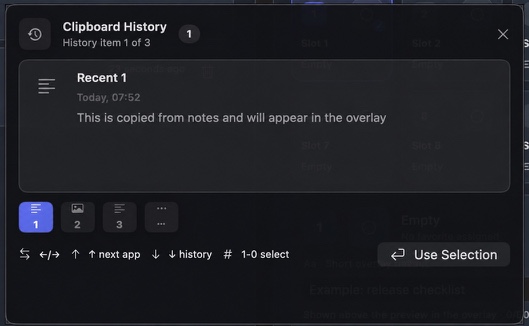
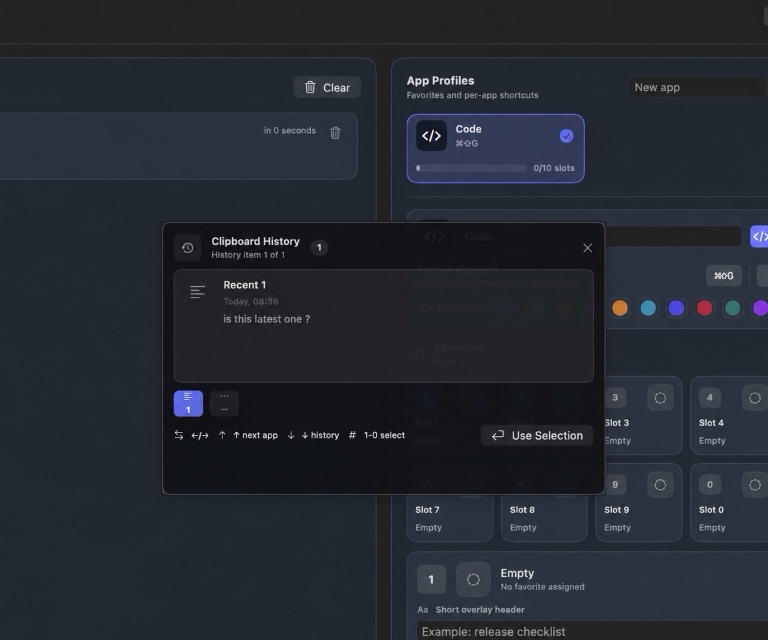
A clipboard manager helps by keeping recent items as they are copied. WhatTheClip is designed to keep that history locally on your Mac, then let you search and paste from a focused keyboard overlay.
Recent history is useful for accidental replacements. Favourites solve a different problem: they keep replies, links, snippets, images, or files that you deliberately want to reuse. App Profiles organise those favourites around the work where they belong.
You can try the safe interactive walkthrough without giving the website access to your real clipboard. You can also review how WhatTheClip handles local clipboard data and see the complete feature list.
A simple recovery checklist
- Stop copying new items until you have checked the available history.
- On macOS Tahoe, search Clipboard history in Spotlight.
- Return to the source app and try Undo, search, recent documents, or version history.
- Check whether a clipboard manager was already capturing history.
- Recover from the original document, file, message, or browser source when possible.
- Set up clipboard history before the next accidental replacement.
If repeated clipboard loss is interrupting your work, explore WhatTheClip’s current capabilities and choose a history limit that fits your workflow.
The fastest recovery habit is to stop making it worse
Once you notice a missing copy, avoid copying anything else while you check the likely recovery paths. Every new copy can move a useful recent item farther down a bounded history list and makes it harder to remember what you were looking for.
Start with the source. A paragraph from a document is usually better recovered from the document; a product link is often still in the browser tab or history; a file is probably still in Finder or its project folder. Clipboard history is excellent when you know the item was captured, but it should be one stop in a recovery routine, not the only plan.
For next time, choose a small history limit that covers the way you work and save frequently reused material as a favourite. That gives accidental copies and deliberate reuse different homes, which makes both easier to find.