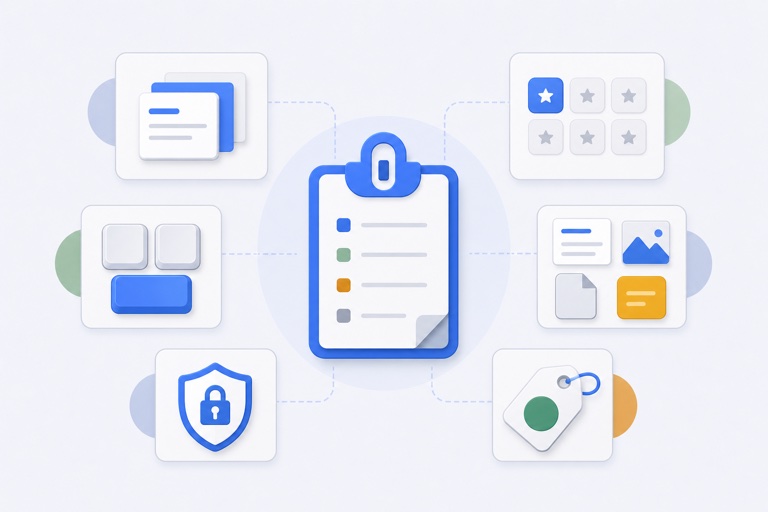
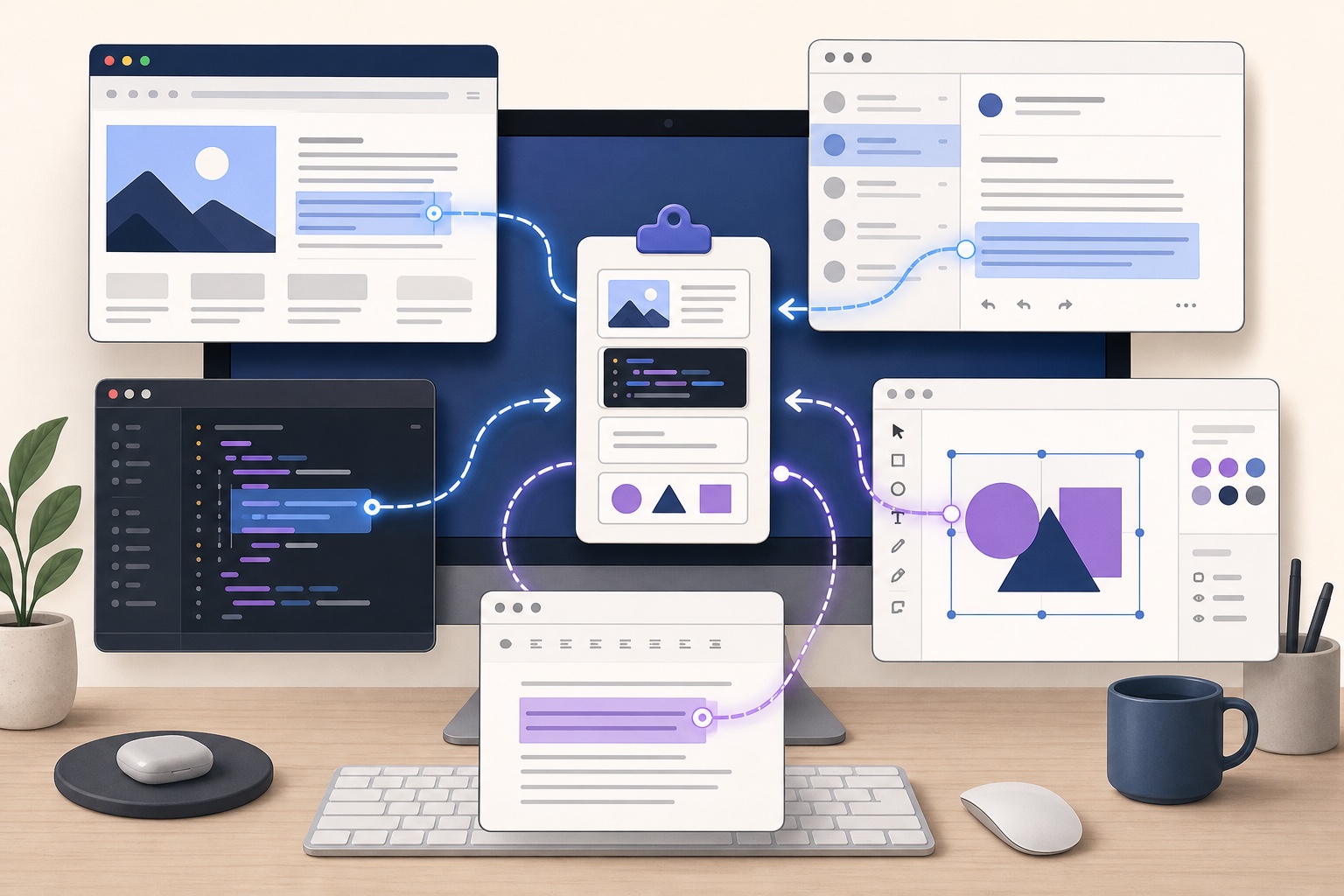
A clipboard manager for developers is most useful when it removes tiny interruptions without becoming another place to store the project. The command you just copied, a review note you use often, a current pull-request link, and a test URL are working material. Source code, credentials, and final documentation belong somewhere more durable.
The developer clipboard problem is usually context switching
Development work rarely happens in one window. You move between a terminal, editor, browser, issue tracker, documentation, and chat. A normal clipboard holds only the last item you copied, so a quick detour can make you hunt for the command or link again.
Recent clipboard history helps with recovery. Deliberate favourites help with the material that returns every day. The useful distinction is between “I copied this a minute ago” and “I need this in every code review.”
Three examples worth keeping close
A current command or test address
Copy a local URL from the terminal, move to the browser, then return to a note or message. Recent history is enough when the value is short-lived. Clear it when the task is done.
Repeated code-review notes
Comments such as “Please add a focused test for this edge case” or “Could we name the failure state explicitly?” are not source code, but they are useful repeated working material. A named favourite is easier to recognise than hoping it stays near the top of a long history.
Project links that change often
Issue links, pull requests, staging URLs, and documentation references are useful while active. Keep the authoritative link in the issue tracker or project documentation; use the clipboard workflow to avoid re-finding it during the current task.
Keep the right things out of clipboard history
Do not treat a clipboard manager as a secrets manager or source-control system. Passwords, recovery codes, private keys, access tokens, and the definitive version of code need a dedicated secure or versioned home.
WhatTheClip is designed around bounded recent history and local reusable material, not permanent storage. Its privacy policy explains what stays local, while clipboard history is not a backup explains the boundary in practical terms.
A lightweight setup that stays useful
- Start with a short recent history for accidental overwrite recovery.
- Add a few favourites only for repeat review notes, current project links, or harmless commands.
- Give each favourite a name that explains its purpose.
- Remove stale project material when the task closes.
This approach keeps a clipboard manager small enough to be fast. If all you need is free history, read the best free clipboard manager guide. If you need a local workflow around repeated material, compare the options in the best Mac clipboard manager shortlist.