
Copy and paste is one of those small actions that disappears into a working day—until the thing you copied is replaced, the same reply needs typing again, or you lose your place while moving between apps and websites.
A useful clipboard manager is not meant to become a second filing system. It is a focused utility for the work that is happening now: recover something recent, reuse something deliberate, and get back to the app where you were working.
The three jobs of a calmer clipboard workflow
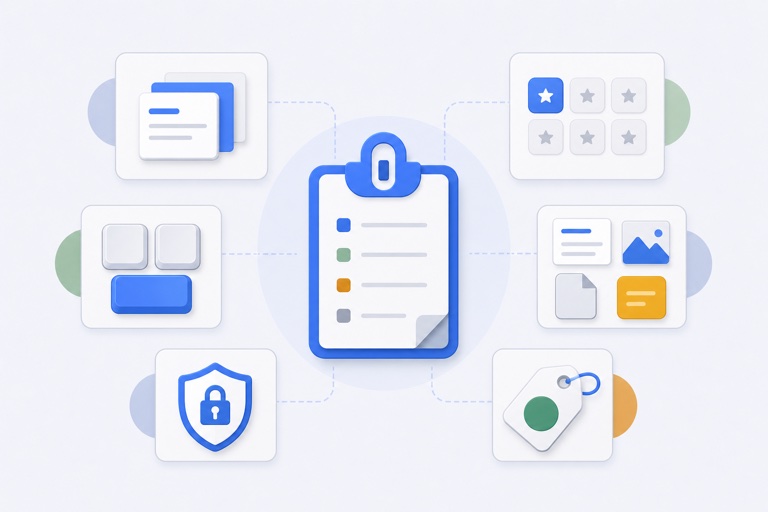
The most useful setups separate three different needs instead of putting everything into one long list.
- Recovery: recent history helps you find the link, sentence, image, or file reference you copied a moment ago.
- Reuse: favourites keep repeated replies, snippets, links, and assets ready for the work that needs them.
- Flow: a keyboard-first overlay lets you choose an item and return to the app you were using without hunting through windows.
That separation matters. Recent history is fast and temporary. Favourites are intentional. The overlay is the path back into the task.
Where this helps during a working day
The same pattern works across roles because the interruption is the same: you copied something useful, changed context, and now need it again.
Email, support, and admin work
Keep a small set of current follow-up wording, useful links, scheduling details, and approved snippets in a profile for the work you repeat. Use recent history when you need the address, order number, or sentence you copied only minutes ago.
The point is not to automate a whole conversation. It is to remove repetitive copying while you still read the message and choose the right response.
Coding and product work
Recent history can rescue a command, a code fragment, a review comment, or a link from a browser tab. Favourites are better for the snippets and review notes that you use repeatedly in a particular project.
Keep the real source of truth in your repository and project tools. The clipboard is the quick route back to material you are actively using.
Design, content, and research
Move a current image, approved copy, handoff link, or file reference between a browser, design tool, document, and chat without retracing your steps. A small, maintained set of favourites is easier to scan than a giant collection of old assets.
Keep original design files in their asset library or project folder. Treat the clipboard as a convenient working copy, not the only copy.
Set it up around real repetition
Start small. The best first workflow is usually one task that appears several times a week.
- Let recent history handle the things you only need to recover once.
- Save repeated, replaceable material to a clearly named favourite slot.
- Group slots by the task or app where they are useful.
- Use the overlay to select and paste without breaking focus.
- Remove stale favourites when wording, links, files, or approved assets change.
Creating app-specific clipboard workflows shows how to turn that simple habit into focused profiles for Mail, coding, design, and support work.
Keep the right things in the right place
WhatTheClip keeps recent history intentionally bounded. Favourites stay until you change them, but they are still working tools—not permanent archives.
For anything important or irreplaceable, use the system designed to keep it safe:
- Documents in document storage with the right version history.
- Code in source control.
- Images and design files in an asset library or project folder.
- Passwords and credentials in a password manager.
Why clipboard history should not be treated as a backup explains that boundary in detail.
Notice the interruption you are removing
The benefit is usually not a dramatic time saving on one paste. It is avoiding the small break in attention: finding the tab again, reopening a chat, remembering which version of a reply was approved, or rebuilding a command that was already in your hands. Those breaks add up because they arrive in the middle of another task.
Use a clipboard workflow to remove one of those breaks, then stop. If you start creating profiles for work you do not actually repeat, the tool becomes another place to organise. A good setup stays almost invisible until the moment it rescues a copy or supplies the line you use every day.
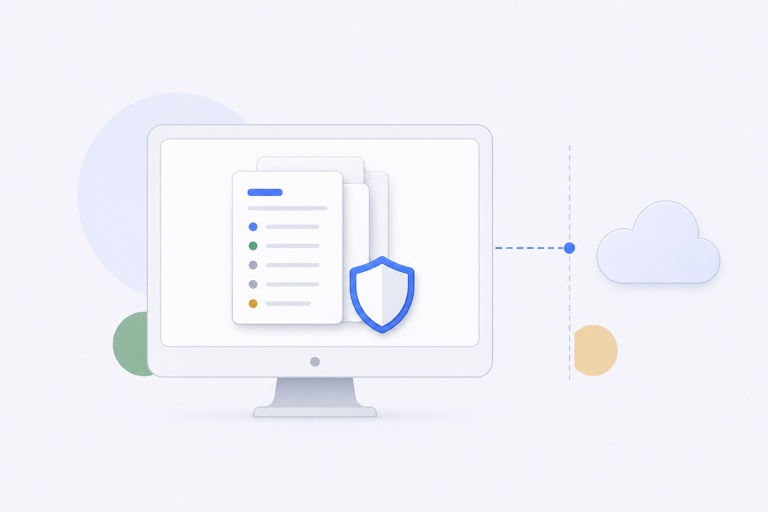
WhatTheClip keeps recent clipboard history, app-specific favourites, and keyboard-controlled paste together on your Mac. See the full feature set or try the interactive workflow demo to understand the flow before installing.