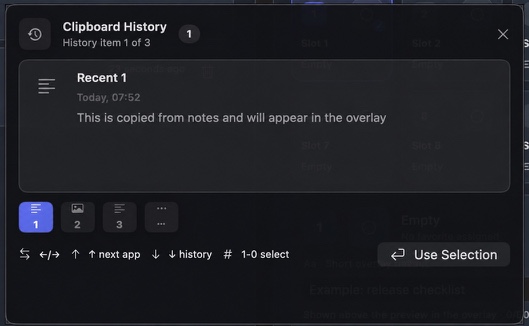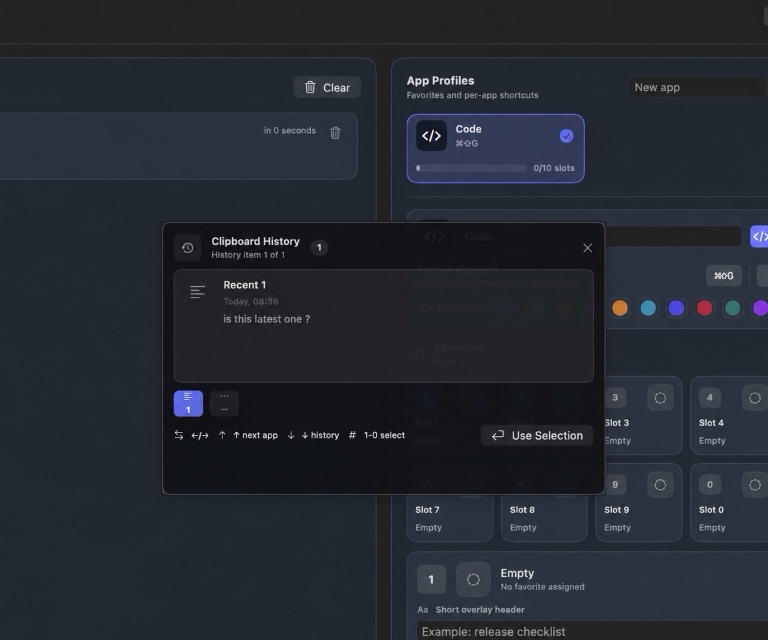

If you use macOS Tahoe 26 or later, your Mac now includes clipboard history in Spotlight. You can search recent text, images, links, and files without installing another utility.
That is a meaningful upgrade. It also solves a different problem from a dedicated clipboard workflow with app-specific favourites and a paste overlay.
Open clipboard history with the keyboard
Apple's current Mac User Guide gives this sequence:
- Press Command-Space to open Spotlight.
- Press Command-4 to switch to Clipboard.
- Enable Clipboard history if macOS asks you the first time.
- Type to search the recent items.
- Select an item and press Command-C, then return to the destination and press Command-V.
You can also click the Clipboard button beside Spotlight's search field. Apple's clipboard history guide documents both paths.
Clear the built-in history when you need to
Clipboard history can contain recognisable text, links, images, and files. Apple warns about sensitive information when you enable the feature.
To clear it, open the Clipboard view in Spotlight, choose the More button, and select Clear History. Clearing it after a sensitive task is a good habit, especially on a shared or screen-shared Mac.
What if your Mac is not on Tahoe?
Apple documents Clipboard history as a macOS Tahoe-or-later feature. On macOS Sonoma 14 or Sequoia 15, normal copy and paste still keeps the current clipboard item, but the Tahoe Spotlight history interface is not available.
A dedicated clipboard manager can provide recent history on those systems, provided the app supports your macOS version.
If you have already copied over something important, use this step-by-step checklist for recovering an earlier copied item on Mac. It explains what can still be recovered and what cannot be restored retroactively.
When the built-in feature is enough
Start with the built-in history if your main need is simple recovery:
- You replaced the last thing you copied.
- You need to search a few recent items.
- You are comfortable returning to the destination for Command-V.
- You do not need reusable content organised by app.
For many people, that is enough. A useful product should make that clear instead of pretending every Mac owner needs another app.
When a dedicated clipboard manager earns its place
A dedicated tool becomes more valuable when clipboard history is only one part of the job.
You reuse the same content
Recent history is automatic and temporary. A favourite is deliberate. Support replies, code snippets, project links, addresses, and approved wording are easier to use when they have named slots that do not depend on when you last copied them.
Different apps need different favourites
The best reply for Mail does not belong beside the snippets you use in a code editor. App Profiles keep the reusable items attached to a workflow instead of mixing them into one long list.
You want a faster paste path
Spotlight lets you find and copy a previous item, then paste it into the destination. WhatTheClip is designed around a keyboard overlay that keeps recent history and numbered favourites in one flow.
You are not ready to move to Tahoe
WhatTheClip supports Apple silicon Macs running macOS 14 or later. That keeps the product useful for supported Macs that do not yet have Tahoe's built-in clipboard history.
Is Apple’s built-in clipboard history enough?
For recent copies, it can be. Tahoe’s Clipboard view is a good built-in answer when you only need to find something you copied a short while ago.
WhatTheClip is designed for the next layer of work: repeated paste material, app-specific favourites, and a keyboard overlay that keeps the selection and paste flow together. It is a working tool, not a replacement for documents or long-term storage.
If you are deciding what fits your workflow, read the Mac clipboard manager guide, compare WhatTheClip with Maccy, or compare WhatTheClip with Paste.
A simple decision
Use macOS Clipboard history when recent recovery is the whole job.
Use a dedicated clipboard manager when you also want reusable favourites, app-specific organisation, a focused keyboard overlay, or support for earlier macOS versions.
You can see WhatTheClip in action without giving the website access to your real clipboard, or explore WhatTheClip’s current capabilities.
A practical way to decide after a week
Use Apple’s built-in Clipboard view for a few normal days if your Mac supports it. Notice the times it solves the problem immediately and the times you still have to remember an old phrase, find the source, or build the same reply again. That is better evidence than choosing based on a feature checklist.
If you repeatedly search for recent copies, the built-in view may already be enough. If you keep copying the same support response, link, command, or asset so that it remains available, you are dealing with deliberate reuse rather than recovery. That is the point where a profile and named favourite slots start to earn their place.
Do not copy sensitive material merely to test either workflow. Use a harmless sentence and a non-sensitive link, then make sure you know how to clear history when you are done.